/
Emailing project Contacts
Emailing project Contacts
- Stacy Reno (Unlicensed)
- Lisa Lopez
Owned by Stacy Reno (Unlicensed)
Follow these instructions to send an email from goPost Public Portal (goPost) to the project Contact(s).
Instructions
- Open the Project detail form.
- Select the COMMENTS tab
- Select the 'EMAIL CONTACTS' button
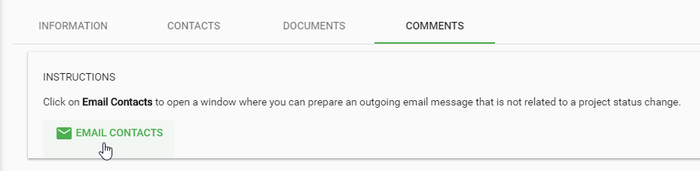
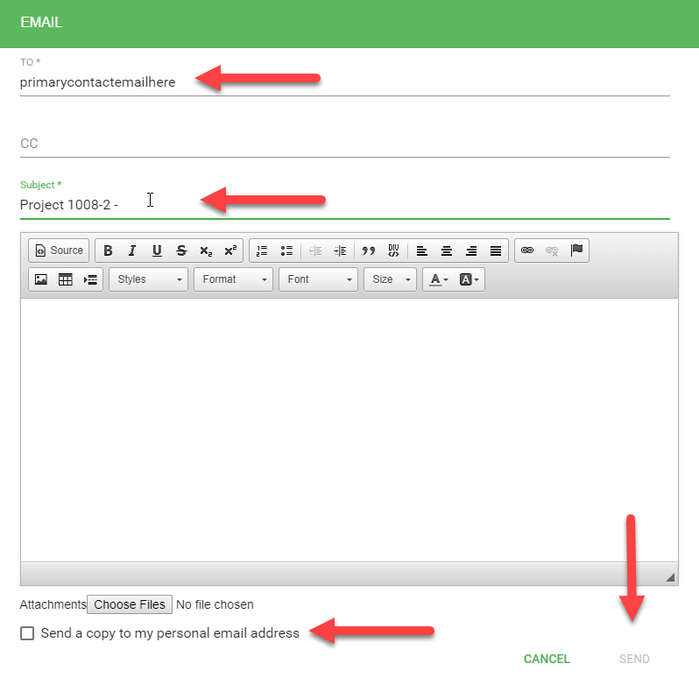
The EMAIL form will open as shown below.
- Validate that the email will be sent to the appropriate Individuals
- Include additional email addresses in the CC field.
- Edit the Subject line of the email, as appropriate.
- Enter the body of the email. Include screen shots, attachments, as appropriate.
- Optionally, check the 'Send a copy to my personal email address', as appropriate.
- Confirm your edits.
- Select the SEND button.
By default, goPost will send an email to the 'Primary' Contacts whenever the project Status is updated.
To view a list of the email sent by goPost, open the project detail form and select the COMMENTS tab.
To view a list of the email sent by goPost, open the project detail form and select the COMMENTS tab.
Related articles
, multiple selections available,
Related content
Email Notifications
Email Notifications
More like this
Create a Project Application
Create a Project Application
More like this
Email Notification Options for Applicants
Email Notification Options for Applicants
More like this
Assisting with New Applications
Assisting with New Applications
More like this
goPost Release Notes
goPost Release Notes
More like this
Linking Related Projects and Revisions
Linking Related Projects and Revisions
More like this